

AI Image Generator
Turn a text prompt or reference image into an original visual with GPT Image 2.5, GPT Image 2.5 Flare, GPT Image 2.5 Sunburst, Nano Banana 2, Nano Banana Pro, or Z-Image.
Upload a source photo and a reference image, describe the change, and get a restyled image that keeps your original composition.
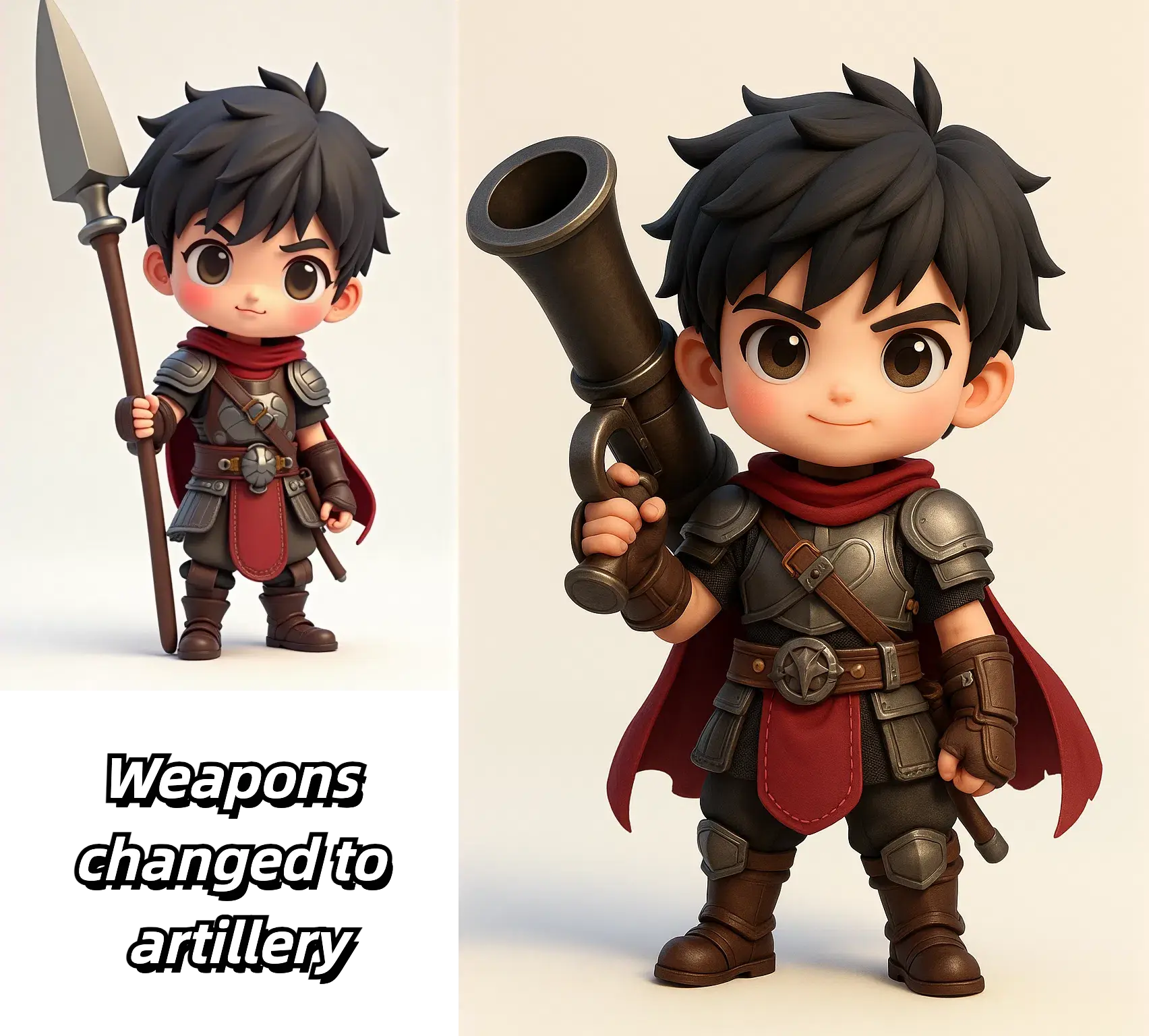
Image to image AI uses your photo as the structure and a second image as the visual reference, so you control both what stays and what changes.
Turn a portrait, product shot, or room photo into the look of your reference image, from watercolor and anime to film photography or a 3D render.
Borrow a color palette, material finish, or lighting mood from the reference while the subject, pose, and layout come from your source photo.
Generate several directions from the same source photo for campaigns, thumbnails, or mood boards without reshooting or redrawing.
Words can only describe a style so precisely. A reference image shows the AI the exact colors, textures, and mood you want, so results land closer on the first try.
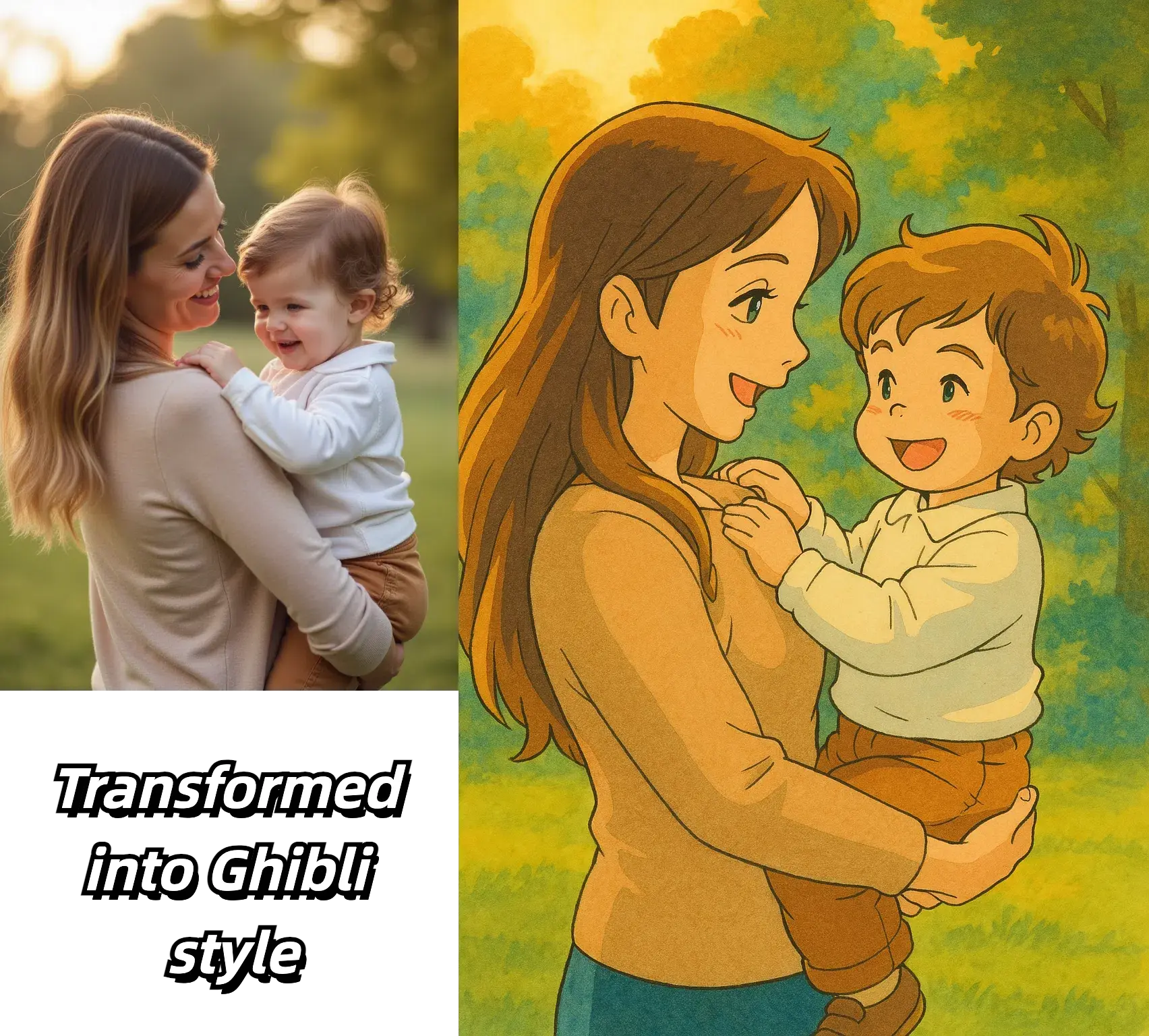
Restyle a photo in three steps: upload two images, describe the change, and download the result
Add the photo you want to transform as Image 1 and the style reference as Image 2. Both images are required.
Write what should change, for example "apply the watercolor style of the reference and keep the face and pose", then pick a model, aspect ratio, and resolution.
Review the result against your source photo, adjust the prompt if needed, and download the version you like.
Everything you need to restyle a photo with AI, from the reference workflow to model and output size.
Image 1 is the source to keep and Image 2 is the reference to borrow from. The AI follows this role split on every request.
Tell the AI what to change: style, atmosphere, materials, colors, or details. Short, specific prompts preserve more of the source photo.
Pick the model that fits the job, then set the aspect ratio and resolution from the same workspace.
Run the same image pair again or tweak the prompt to compare several versions side by side.
Send the result to AI Image Editor, AI Image Enhancer, or AI Image Upscaler for finishing touches.
Upload common image formats and download the finished image for social posts, ads, or design work.
Answers about reference images, prompts, results, and credits
Upload a source photo and a reference image, describe the look you want, and get a new version that keeps your composition.


